Summary of key takeaways:
Backups are non-negotiable: Before moving a single file, ensure you have a full backup of your database and site files to prevent data loss.
DNS is the final switch: A migration isn’t complete until you update your Name Servers at your domain registrar to point to the new host.
Plugins vs. Manual: While manual migration offers full control, using a migration plugin (like Migrate Guru) is the safest and fastest route for most small business owners.
The “48-Hour Rule”: Keep your old hosting account active for at least 48 hours after the move to ensure the DNS has fully propagated and no critical errors occur.
Running a small business is a whirlwind of tasks, and your website is often the digital heartbeat of your operations. But what happens when your current web host is too slow, too expensive, or just plain unreliable? You might find yourself asking, “how do I transfer my WordPress blog safely?” or “how to transfer a WordPress website to another host without losing data?“
The idea of a WordPress migration can feel like moving your entire physical office overnight. It sounds stressful, technical, and full of potential for things to go wrong.
Don’t worry. We’ve written this guide specifically for small business owners who want to migrate a WordPress site without the technical headaches. Whether you want to move a WordPress site to a new host to improve performance or move a WordPress website to a new domain to refresh your brand, we’ll walk you through it step-by-step.
Why migrate your WordPress website?
Before we dive into the “how,” let’s look at the “why.” Most business owners decide to migrate a WordPress site to a new host because they’ve outgrown their current setup. Common reasons include:
- Better performance: Faster loading times for your customers.
- Improved security: Protecting your business data and customer info.
- Superior support: Having a team that actually answers the phone (or chat).
- Cost savings: Finding a better value for your monthly investment.
Knowing how to move a WordPress site gives you the freedom to choose the best partner for your digital growth.
>> Related content: What is WordPress hosting?
Preparing for a WordPress migration
You wouldn’t move into a new house without a plan, right? To move a WordPress website to a new host successfully, you need to prepare.
1. Back up everything
This is the most critical step. Before you try to transfer a WordPress site to another host, create a complete backup. This includes your files (images, themes, plugins) and your database (posts, pages, comments).
2. Audit your site
A WordPress migration is the perfect time for a “spring cleaning.” Delete old plugins you aren’t using and clear out those thousands of spam comments. It makes the transfer of your WP site to a new host much faster.
3. Choose your new home
When you migrate a WordPress website to a new host, ensure they meet the specific requirements of WordPress (PHP versions, SSL certificates, etc.).
How to transfer your WordPress website to a new host (The manual method)
If you’re feeling adventurous and want to migrate a WordPress site to another host manually, here is the roadmap.
Note: one wrong move and you may be faced with the “White Screen of Death”. If you don’t know how to bring your website back online when faced with a critical error, we do not recommend you attempt this yourself.
Step 1: Export your WordPress database
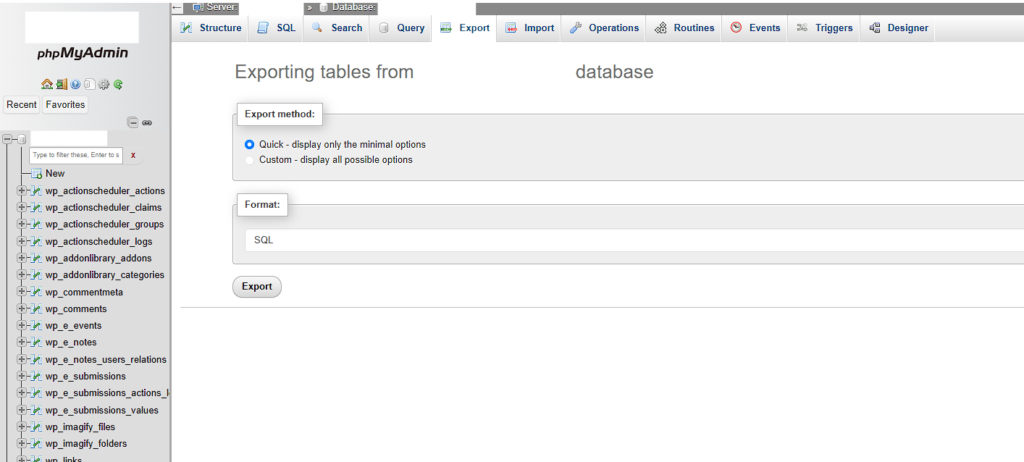
Your database is the “brain” of your site. Log in to your old host’s control panel (usually cPanel) and use phpMyAdmin to export your database as an SQL file. This is a vital piece of the puzzle when you move WordPress to another host.
Step 2: Download your website files
You’ll need an FTP client (like FileZilla) to connect to your old server. Download every folder inside your public_html directory to your computer. Now you have a local copy ready to move WordPress to a new host.
Step 3: Create the database on the new host
Go to your new hosting account. You’ll need to create a fresh, empty database and a database user. Keep these credentials handy—you’ll need them to transfer a WordPress website to a new host.
Step 4: Import your database
Go back to phpMyAdmin, but this time on your new host. Select your new database and import that SQL file you saved in Step 1.
Step 5: Upload your files
Using your FTP client again, connect to your new server and upload all your files. This is the heavy lifting of the WordPress migration process.
Step 6: Edit the wp-config.php file
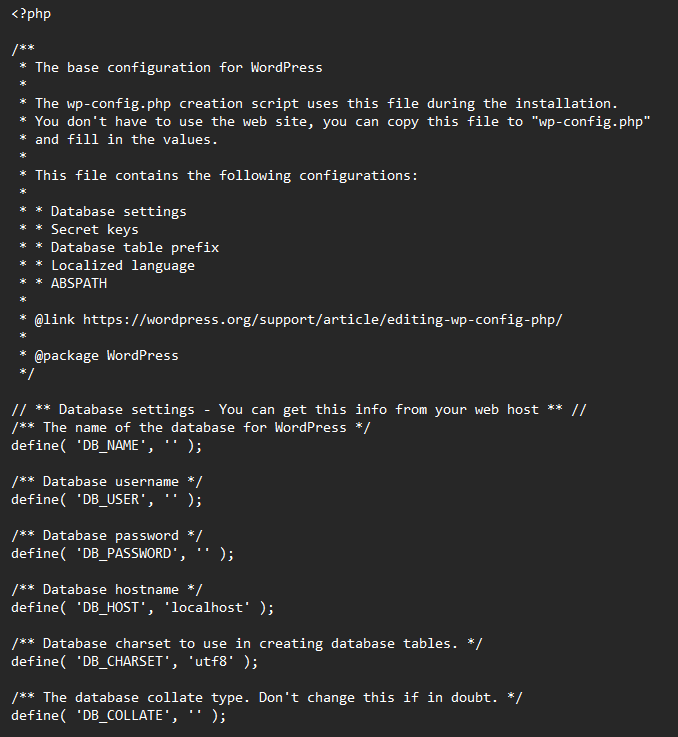
This file tells your website how to talk to the database. You’ll need to update the database name, username, and password to match your new host. This is a key step in learning how to transfer a WordPress website.
Using plugins for an easier WordPress migration
If the manual steps sound like a lot of work, you’re right! Many business owners prefer to migrate a WordPress to a new host using a plugin like Migrate Guru (our favourite), Duplicator, or All-in-One WP Migration. These tools package your entire site into one file, making it much simpler to move a WordPress site to another host.
- Install the plugin on your old site.
- Create a “package” or “export file.”
- Install WordPress on your new host.
- Install the same plugin on the new site and “import” the file.
Post-migration: The final checklist
Once you’ve successfully managed to move your WordPress to a new server, you aren’t quite finished.
Update your DNS
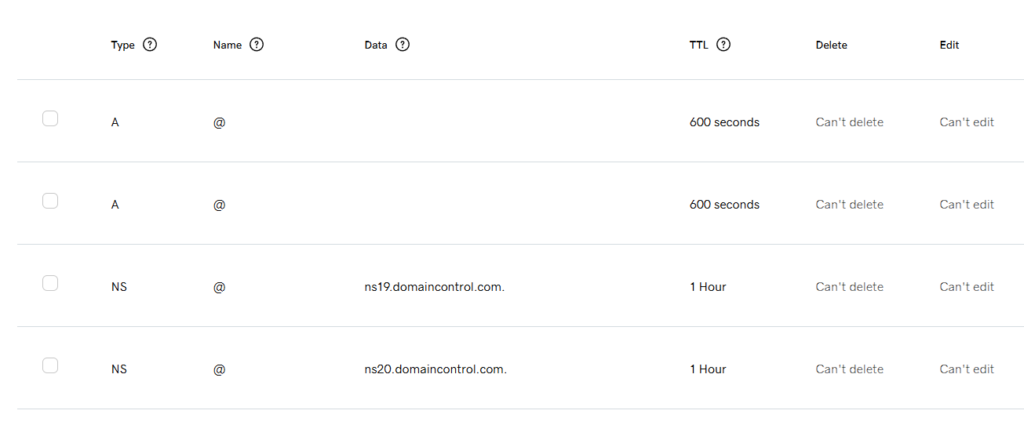
Your domain name (like yourbusiness.ca) is currently pointing to your old host. You need to log in to your domain registrar and update the Name Servers to point to your new host. This tells the internet that you have moved.
Check the SSL
After moving to your new host, don’t forget to re-issue an SSL certificate on the new host. Failing to do so can create “Mixed Content” errors.
Test, test, test
Once you transfer your WordPress site to a new host, check every page:
- Do the images load?
- Do the contact forms work?
- Is the checkout process smooth?
Cancel your old hosting account
We suggest you wait at least 48 hours before cancelling or deleting your old hosting account. This offers a buffer in the event you realize critical errors have occurred.
Moving to a new domain?
If your goal was specifically to migrate a WordPress site to a new domain or move a WordPress website to a new domain, you will also need to perform a “search and replace” on your database to update all instances of the old URL to the new one. This ensures your links don’t break during the transfer of your WP site to a new domain.
Common pitfalls to avoid
When you migrate a WordPress to another server, watch out for these common issues:
- Large file sizes: If your site is huge, an FTP transfer might time out.
- PHP version mismatches: Ensure your new host supports the version of PHP your site requires.
- Broken links: Always check your internal links after you move your WP site to a new domain.
Let Sparked handle the heavy lifting
We know what you’re thinking. “I just wanted to know how to transfer my WordPress site, but this sounds like a lot!”
For a small business owner, your time is your most valuable asset. Spending hours trying to migrate a WordPress website to a new host or troubleshooting why you can’t move a WordPress site to a new host is time away from your customers.
Plus, one wrong move and you’re going to be faced with the “White Screen of Death”.
At Sparked, we take the stress and risk out of the equation. As part of our WordPress website managed hosting and maintenance services, we provide professional WordPress migration at no extra hassle to you.
As managed hosting experts, we can transfer your WordPress website to a new host, move your WordPress to a new server, or migrate your WordPress to another hosting provider with precision. We handle the backups, the database exports, the DNS updates, and the post-launch testing.
Why choose Sparked?
- We’ve done hundreds of website migrations – from simple to highly complex.
- We perform migrations with zero downtime so your visitors aren’t impacted.
- We use temporary domains or local hosts file entries to QA before making DNS changes and pointing client domains.
Why deal with the headaches and potential downtime of trying to move a WordPress to another host yourself? Let us take care of everything for you so you can focus on what you do best—running your business.
Ready for a worry-free migration? Contact Sparked today and let’s get your website moved to its new, faster home!